
Wi-Fi 6 vs 6E vs 7: What Actually Changes in a Home
Router marketing quotes theoretical maximum throughput that no home device will ever reach. The generational improvements are real, but they are mostly about handling many devices efficiently rather than making one device faster — and for most households the limiting factor is somewhere else entirely.
Start with the ceiling you cannot exceed
No Wi-Fi upgrade can deliver more than your internet connection provides. If you pay for 100 Mbps, a router advertising 5,000 Mbps changes nothing about how fast a web page loads.
Where a better router does help is local traffic — moving files between machines, streaming to a TV from a home server — and in handling congestion when many devices are active at once. Those are genuine benefits and they are not what the box advertises.
Before upgrading, run a wired speed test at the router. If you get your full plan speed on Ethernet but not on Wi-Fi, the wireless is the problem. If you do not get it wired either, the router is not your issue.
What each generation actually added
Wi-Fi 6 is mainly an efficiency upgrade. Its important features — OFDMA and improved MU-MIMO — let a router serve many devices concurrently rather than rapidly taking turns. In a house with thirty connected things, that reduces congestion noticeably. Target Wake Time also improves battery life on phones and IoT devices. Single-device speed in an empty house improves modestly.
Wi-Fi 6E is the same technology plus access to the 6 GHz band. This is the significant one, because 6 GHz is largely empty — no legacy devices, no neighbours' networks, no microwaves. In a dense flat block, that clean spectrum is worth more than any throughput figure.
Wi-Fi 7 adds wider channels, higher-order modulation, and Multi-Link Operation, which lets a device use two bands simultaneously for more reliability and lower latency. It is genuinely impressive and it needs Wi-Fi 7 client devices to do anything, which most households do not yet have.
The trade nobody mentions: range
Higher frequencies carry more data and penetrate walls worse. This is physics, not implementation.
2.4 GHz travels furthest and through the most walls, and is slow and congested. 5 GHz is much faster with meaningfully worse wall penetration. 6 GHz is faster still and has the shortest usable range of the three — often barely beyond the room it is in, once a solid wall is involved.
So a 6E or 7 router is not automatically better everywhere in your house. It is better near the router. In the back bedroom two walls away, you may still be on 2.4 GHz, exactly as before.
The practical implication: for a distant device that only needs reliability — a camera, a smart plug, a printer — 2.4 GHz remains the correct band, and forcing it onto a higher one is why it keeps dropping.
Who should actually upgrade
Worth it: flats and dense neighbourhoods where the 2.4 and 5 GHz bands are congested with neighbouring networks — 6 GHz clean air is a real improvement. Households with a very high device count. Anyone whose router is more than five or six years old, where the gains come as much from better hardware as from the standard.
Not worth it: a modest internet plan with a handful of devices and no complaints. A house where coverage, not speed, is the problem — that needs mesh or wiring, not a newer standard. Anyone whose devices are all older, since a Wi-Fi 7 router serving Wi-Fi 5 laptops delivers Wi-Fi 5.
The fixes that usually matter more
Before spending anything, four changes cost nothing and solve a surprising share of complaints.
Move the router. Central, elevated, in the open. Not in a cupboard, not on the floor, not behind a television. Signal radiates outward and downward, so a router in a ground-floor corner wastes most of its coverage on the garden.
Choose a clear channel. On 2.4 GHz only channels 1, 6 and 11 do not overlap; a phone scanning app shows what neighbours occupy.
Enable QoS so a large upload does not ruin a video call.
Check what is actually connected. An old device stuck on an ancient standard can drag down a shared band.
And if the problem is a dead spot rather than raw speed, the answer is mesh with wired backhaul where possible — a node connected by Ethernet gives full speed, while one relaying wirelessly typically halves throughput per hop.
Buying sensibly
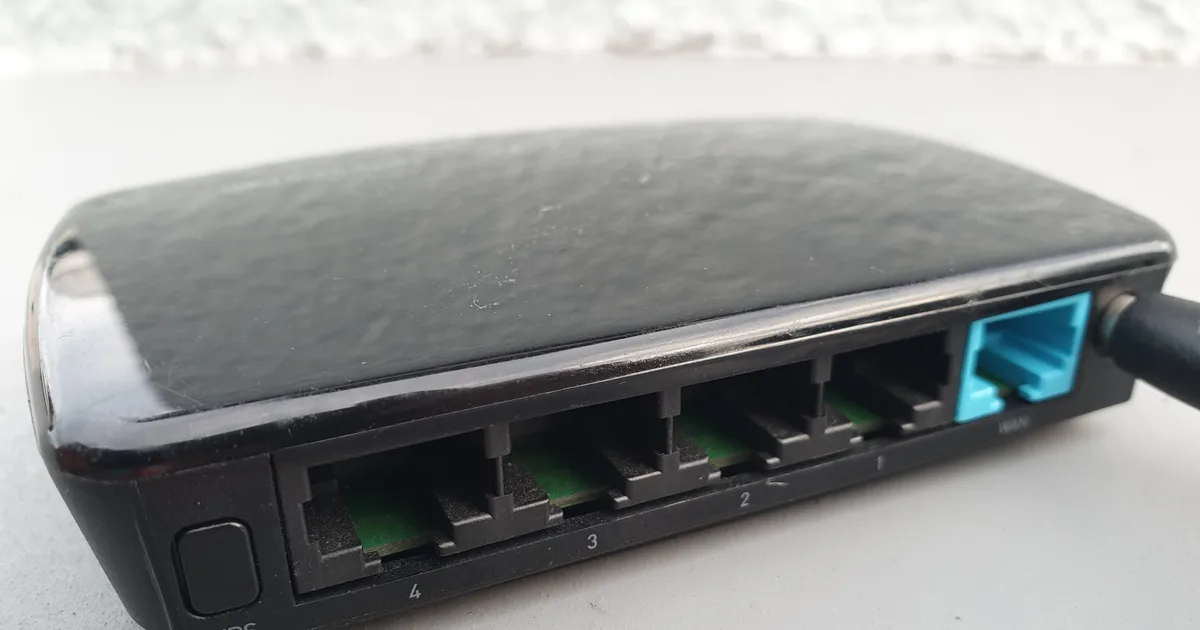
If you do upgrade, the specifications worth attention are the number of bands, whether it supports wired backhaul for mesh nodes, the Ethernet port speeds (a 2.5 Gbps WAN port matters if your plan exceeds a gigabit), and the manufacturer's track record on firmware updates — which is a security question as much as a performance one.
Ignore the aggregate speed number on the box. It is the sum of every band's theoretical maximum and no single device will ever see it.
Diagnosing before you buy
Ten minutes of measurement usually identifies the real problem and frequently saves the cost of a router.
Test wired first. Plug a laptop into the router with Ethernet and run a speed test. That is the ceiling everything else works below. If it is well under your plan, the issue is your connection or the modem, and no wireless upgrade helps.
Then test on Wi-Fi standing next to the router. If this is close to the wired figure, your router is fine and you have a coverage problem, not a capacity one. If it is far lower even at arm's length, the router or your device's wireless adapter is the limit.
Then walk to the problem room and test again. A large drop confirms coverage — solved by moving the router, adding a mesh node placed where the signal is still good, or running a cable. A newer standard will not fix it.
Check which band you are actually on. Many devices cling to 2.4 GHz long after a better 5 GHz signal is available. Some routers let you nudge this; on others, separating the band names lets you choose deliberately.
If you are comparing hardware, our ranked comparisons of Wi-Fi 6 routers and long-range Wi-Fi equipment cover the options, scored against the criteria in our rating methodology.
Standards, device support and pricing change quickly in this category. Confirm current specifications with the manufacturer, and check your internet plan's actual delivered speed before attributing slowness to Wi-Fi.